
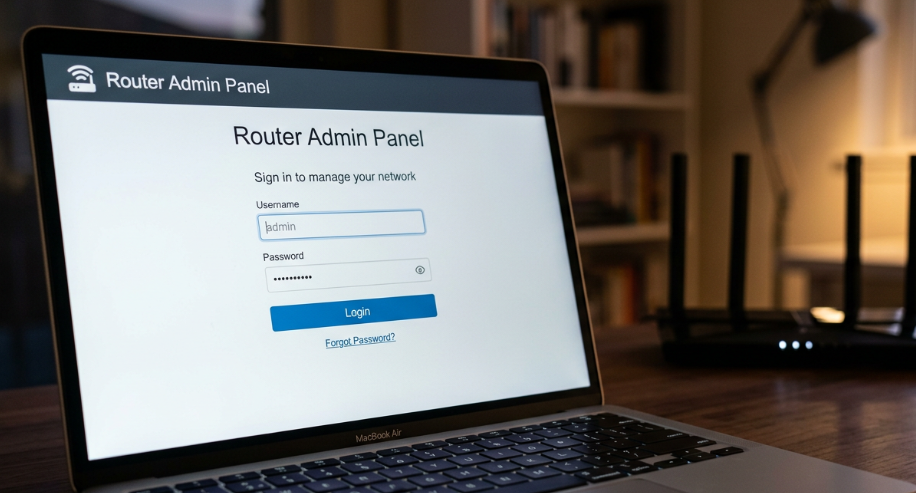
Forgetting your router password can prevent you from accessing the router’s admin panel or connecting devices to your Wi-Fi network. Fortunately, you can usually recover access by changing the password through the router settings or performing a factory reset.
This guide explains how to reset a router password, what to do if you cannot log in, and how to create a stronger password afterward.
What Is a Router Password?
A router can have two different passwords:
- Wi-Fi password: Used to connect phones, computers, TVs, and other devices to the wireless network.
- Router admin password: Used to access the router’s administration panel and change network settings.
These passwords are not necessarily the same. Before resetting anything, figure out which password you forgot.
How to Reset a Router Password
The correct method depends on whether you can still access the router’s admin panel.
Method 1: Change the Password Through the Router Settings
If you know the current admin password, changing it is straightforward.
- Connect your computer or phone to the router.
- Open a web browser.
- Enter the router’s local IP address in the address bar, such as 192.168.1.1 or 192.168.0.1.
- Enter your admin username and password.
- Open Administration, System, Security, or a similar section.
- Find the option for Password, Admin Password, or Change Password.
- Enter your new password.
- Save or apply the changes.
Exact menu names vary by router manufacturer.
Method 2: Reset the Router if You Forgot the Admin Password
If you cannot remember the router’s admin password, you may need to perform a factory reset.
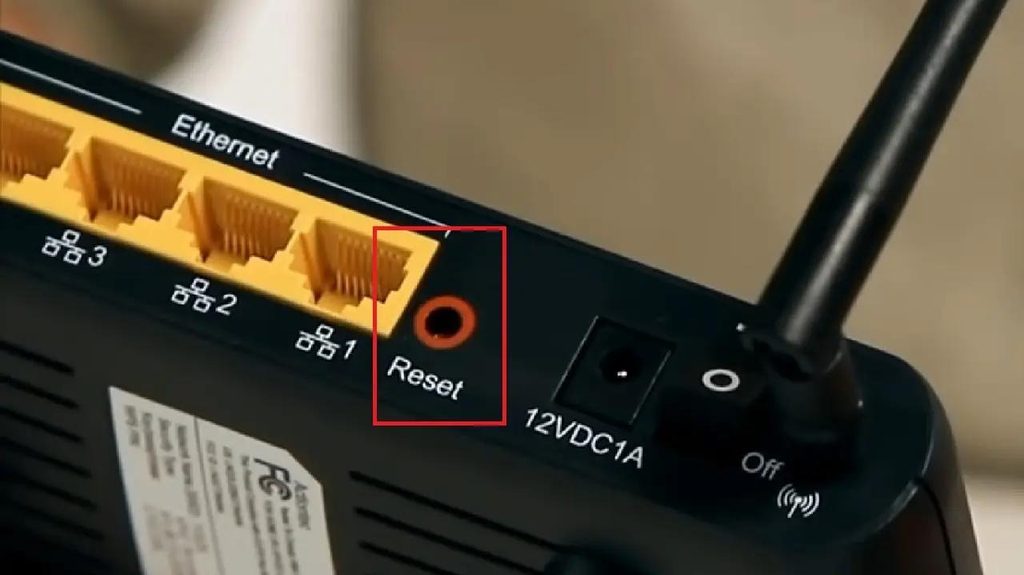
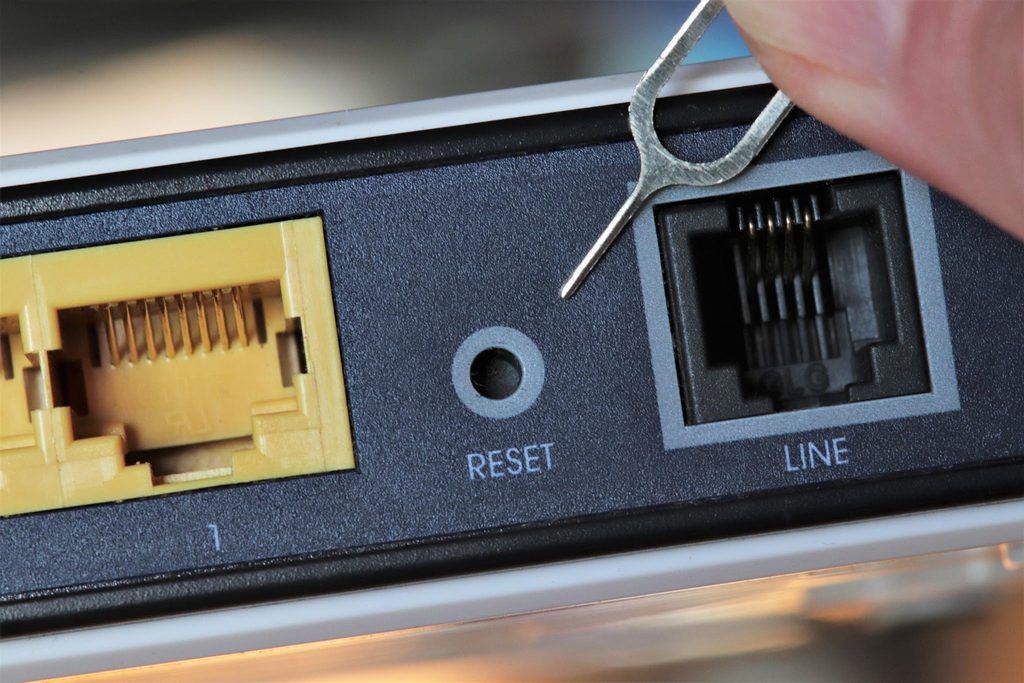
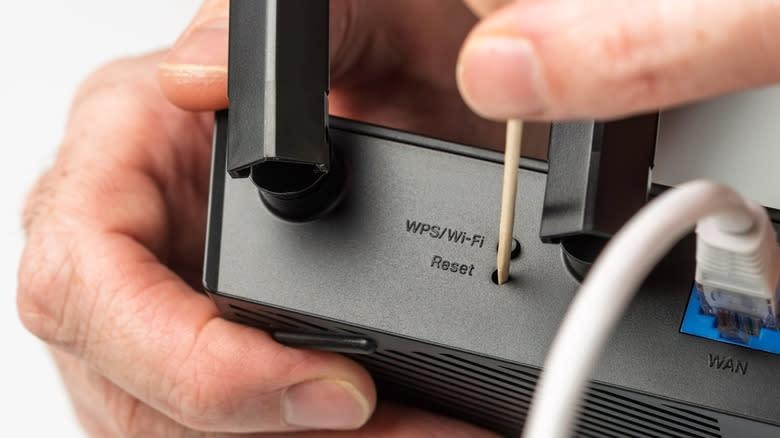
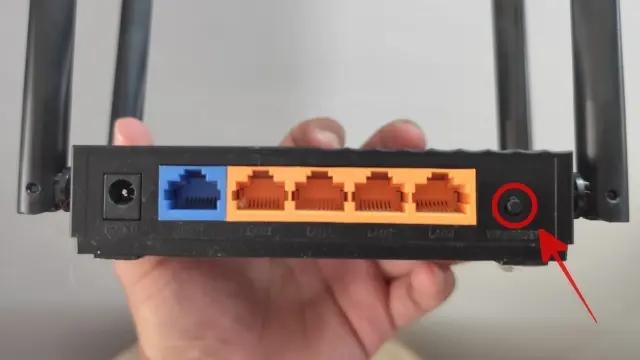
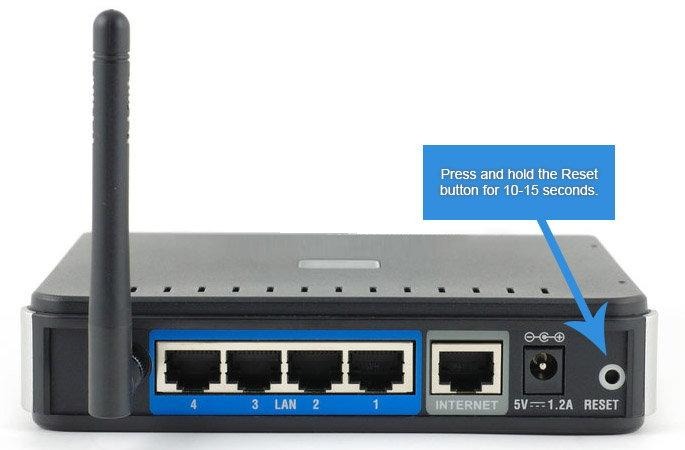
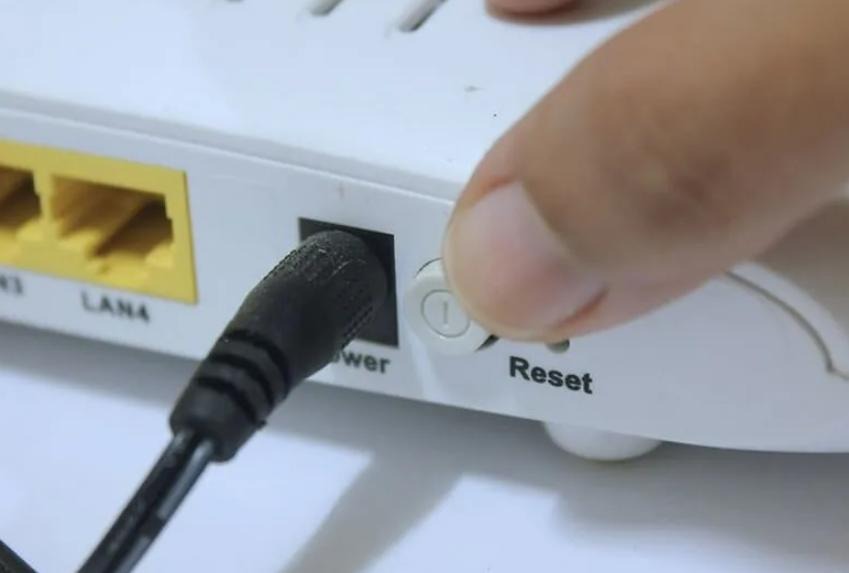
Follow these steps:
- Keep the router powered on.
- Locate the small Reset button or pinhole on the router.
- Use a paperclip or similar non-sharp object to press and hold the button.
- Hold it for about 10–30 seconds, depending on the router model.
- Release the button when the router’s lights indicate that the reset has started.
- Wait for the router to restart completely.
- Use the default login details provided on the router label or in its documentation.
- Set a new admin password and reconfigure your network.
Important: A factory reset removes your customized router settings. This can include the Wi-Fi name, Wi-Fi password, parental controls, port forwarding, and other network configurations.
How to Reset a Wi-Fi Password
If you remember the router’s admin password but forgot the Wi-Fi password, you usually do not need to factory-reset the router.
Log in to the router’s administration panel and open the Wireless, Wi-Fi, or Wireless Security section. Look for the Wi-Fi password or security key field, enter a new password, and save the settings.
After changing it, previously connected devices may need to reconnect using the new password.
Router Password Reset Methods at a Glance
| Situation | Recommended Action |
| You know the admin password | Log in and change it |
| You forgot the Wi-Fi password | Log in and change the wireless password |
| You forgot the admin password | Factory reset may be required |
| Router settings are inaccessible | Check the manufacturer’s instructions |
| Router was recently reset | Use the default details shown on the router |
What Happens After a Factory Reset?
A factory reset returns the router to its original configuration. Your customized settings will be removed.
You may need to configure:
- Wi-Fi network name
- Wi-Fi password
- Router admin password
- Internet connection settings
- Guest network
- Parental controls
- Port forwarding
- Other customized settings
If your internet connection requires specific ISP settings, you may need those details before you can complete the setup.
How to Create a Strong Router Password
After resetting your password, choose one that is hard to guess.
A good router password should:
- Be long and unique.
- Use a combination of letters, numbers, and symbols.
- Avoid names, birthdays, phone numbers, and common words.
- Not be reused on other accounts.
- Store it in a trusted password manager if needed.
Avoid simple passwords such as admin123, password123, or your Wi-Fi name.
What If the Router Reset Button Does Not Work?
If holding the reset button does not restore access, check the router manufacturer’s instructions for the correct reset procedure. Some models require a specific button-press duration or sequence.
Also, make sure you are pressing the actual Reset button, not a WPS button, as they serve different purposes.
Frequently Asked Questions
Can I reset my router password without resetting the router?
Yes. If you can access the router’s admin panel, you can normally change the admin or Wi-Fi password without performing a factory reset.
Does resetting the router delete the Wi-Fi password?
A factory reset generally removes customized Wi-Fi settings, including the Wi-Fi name and password. You will need to configure them again.
How long should I hold the router reset button?
The required time varies by router. Many routers require you to hold the reset button for several seconds, often around 10–30 seconds. Check your router’s documentation for the exact procedure.
What is the difference between resetting and restarting a router?
Restarting simply turns the router off and back on and normally keeps your settings. Resetting restores factory defaults and removes customized configurations.
Can I change my router password from my phone?
Yes. If your router provides a web-based administration panel or a supported mobile app, you can usually change the password from a phone connected to the router.
Final Thoughts
Knowing how to reset a router password can help you regain access to your network when you forget your credentials. If you can still access the router settings, simply change the password from the administration panel. If you have completely lost admin access, you may need a factory reset.
Before performing a factory reset, remember that it can erase your customized network configuration. After regaining access, set a strong, unique password and keep your router credentials somewhere secure. Visit SEOToolzz for more related information.

1 Comment
Pingback: How to Prevent Unauthorized Network Access