
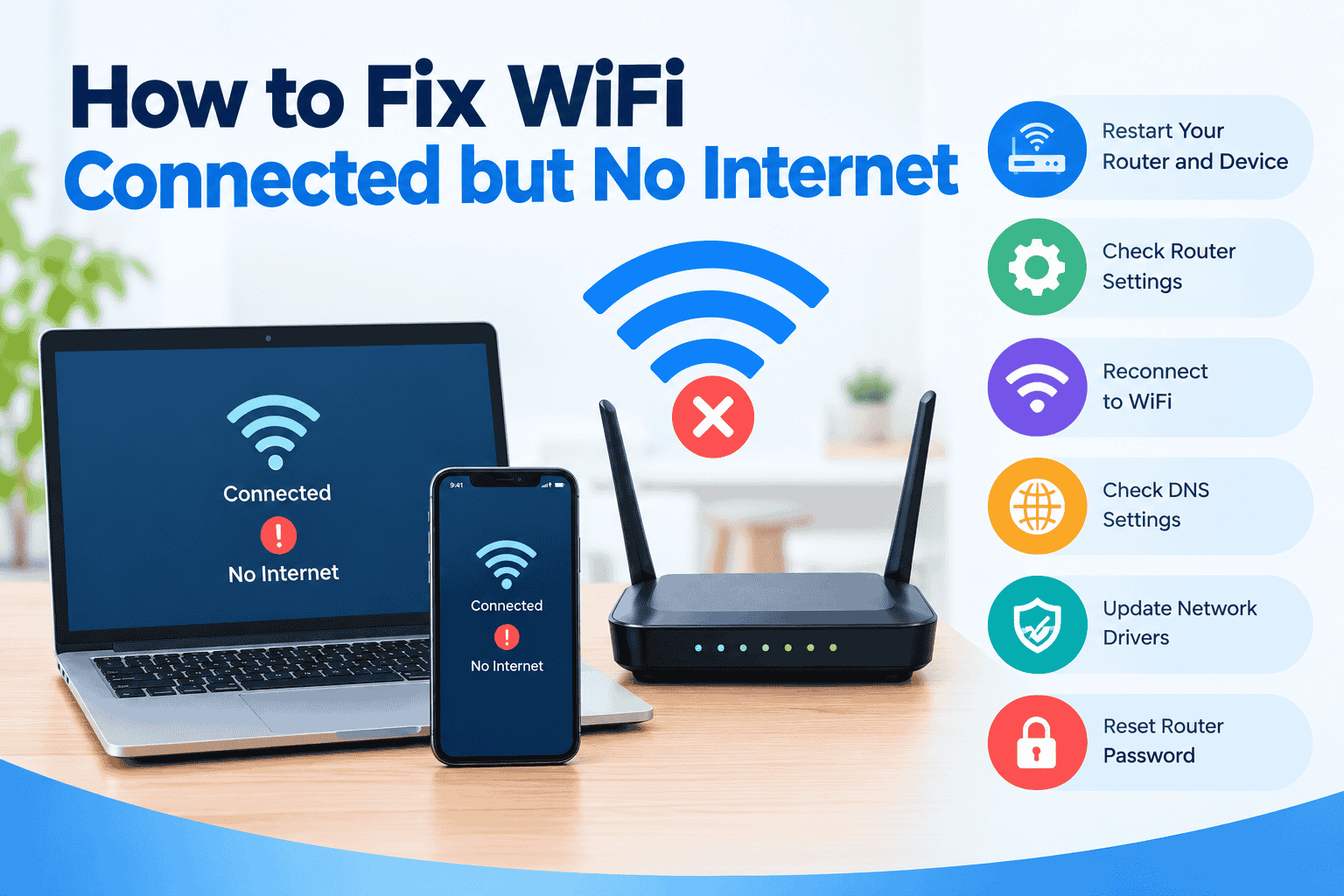
How to Fix WiFi Connected but No Internet
Seeing “Connected” on your phone or computer but still having no internet access can be frustrating. Your router, internet service provider, DNS settings, or the device itself may be causing the problem. Fortunately, you can fix most WiFi connection problems with a few simple troubleshooting steps.
Check Your Internet Connection
First, check whether the problem affects one device or every device connected to your WiFi. If all devices have no internet access, the issue likely involves your router or internet service. If only one device is affected, troubleshoot that device first.
Restart Your Router and Device
Restarting your equipment is one of the quickest ways to fix temporary network problems.
- Turn off your router.
- Wait about 30 seconds.
- Turn the router back on.
- Wait until the internet and WiFi lights stabilize.
- Restart your phone, computer, or other affected device.
Try opening a website again after reconnecting.
Check Your Router’s Connection
Look at the lights on your router. If the internet or WAN light is red, orange, or completely off, your router may not be receiving an internet connection from your ISP.
Check that the Ethernet or fiber cable is securely connected. If the problem continues, contact your internet provider to check for outages or service issues.
Access the Router Settings
To check your router configuration, open a web browser and enter the router’s gateway address. Common addresses include 192.168.1.1 and 192.168.0.1.
Some network devices may use 10.0 0.1 as their local gateway address. The exact address depends on your router model and network configuration.
Forget and Reconnect to WiFi
If the internet works on other devices, your device may have a temporary WiFi configuration problem. Go to your device’s WiFi settings, select your network, choose Forget Network, then reconnect using the correct password.
This can refresh the connection and resolve incorrect network settings.
Check DNS Settings
A DNS problem can prevent websites from loading even when your device is connected to WiFi.
Try switching to a reliable public DNS service, such as Google DNS or Cloudflare DNS. After changing the DNS settings, reconnect to WiFi and test several websites.
Check for Network Restrictions
Some managed WiFi networks allow administrators to temporarily stop internet access for connected users. For example, a piso wifi pause time pause setting can suspend internet access during a specific period.
If you are using a managed or public WiFi system, check whether your account or device has been restricted before changing router settings.
Update Network Drivers
On computers, outdated or corrupted WiFi drivers can cause connection problems.
Check for available network adapter updates through your operating system or the device manufacturer’s support page. Restart the computer after installing an update.
Reset the Router Password
If you cannot access your router because you have forgotten its administrator password, you may need to reset the router password to its factory settings.
Press and hold the router’s reset button as the manufacturer’s instructions say. Keep in mind that a factory reset removes customized settings, including the WiFi name and password.
Reset Network Settings
If nothing else works, reset the affected device’s network settings.
This removes saved WiFi networks and related network configurations. After the reset, reconnect to your WiFi and test the internet connection.
Be Aware: How to Prevent Unauthorized Network Access
Quick Troubleshooting Chart
| Problem | Recommended Fix |
| All devices have no internet | Restart router and check ISP |
| One device has no internet | Forget and reconnect to WiFi |
| Websites won’t load | Check DNS settings |
| Router shows an error light | Check cables and ISP status |
| WiFi keeps disconnecting | Update drivers and router firmware |
| Router login unavailable | Reset router credentials/settings |
Final Thoughts
When WiFi is connected but there is no internet, start with simple solutions such as restarting the router, checking cables, reconnecting to WiFi, and testing other devices. If the problem affects the entire network, contact your internet provider after checking the router and connection.
For persistent issues, updating network settings, checking DNS, or resetting the router can help restore internet access.
