
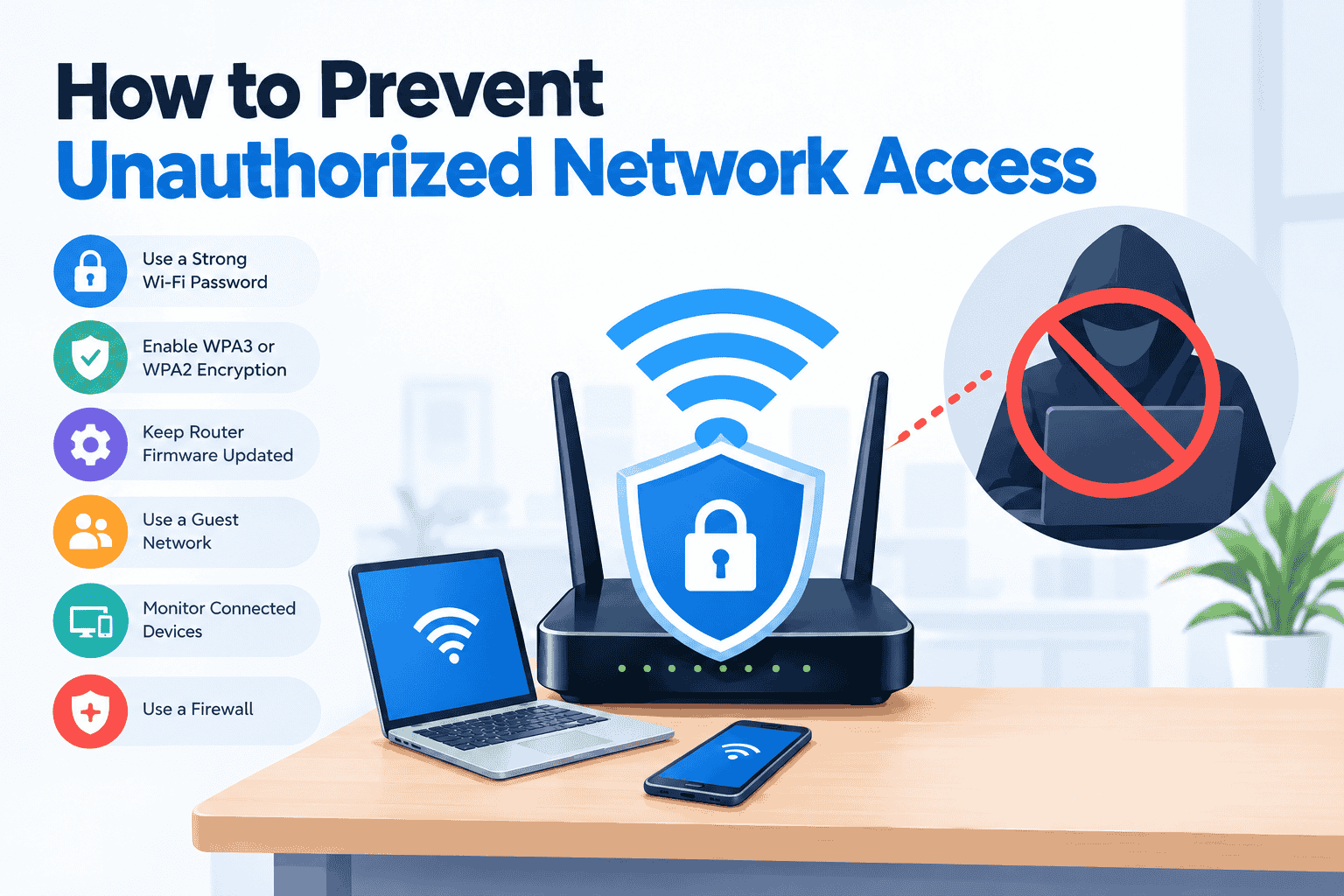
Unauthorized network access can expose private data, slow down network performance, and create serious security risks. Whether you manage a home Wi-Fi connection or a business network, using the right security measures can help keep unknown users and attackers away.
What Is Unauthorized Network Access?
Unauthorized network access occurs when someone connects to a network without permission. This may happen because of a weak Wi-Fi password, outdated router firmware, unsecured devices, or poor access controls.
An unauthorized user may attempt to use your internet connection, access shared files, monitor network activity, or exploit vulnerable devices.
How to Prevent Unauthorized Network Access
1. Use a Strong Wi-Fi Password
Create a long, unique password that combines uppercase and lowercase letters, numbers, and special characters. Avoid using easily guessed information such as your name, phone number, address, or birth date.
Never reuse your Wi-Fi password across different accounts or networks.
2. Enable WPA3 or WPA2 Encryption
Use WPA3 when your router and connected devices support it. If WPA3 is unavailable, WPA2-AES is generally a safer choice than older encryption standards.
Avoid WEP because it provides weak protection and can be easily compromised.
3. Change the Router’s Default Login
Routers often come with default administrator credentials. Leaving them unchanged can make it easier for unauthorized users to take control of the router.
Reset the router password and administrator username during initial setup, and use credentials different from your Wi-Fi password.
4. Keep Router Firmware Updated
Router manufacturers regularly release firmware updates that fix security vulnerabilities and improve performance.
Check your router’s administration panel or manufacturer’s website for available updates. Enable automatic updates if your router supports them.
5. Disable WPS When It Is Not Needed
Wi-Fi Protected Setup (WPS) can make connecting devices more convenient, but some implementations have security weaknesses. If you do not need WPS, disabling it can reduce potential attack routes.
6. Create a Separate Guest Network
Give visitors access through a guest Wi-Fi network instead of sharing your primary network password.
A properly configured guest network can isolate visitors from computers, printers, storage devices, and other private resources on your main network.
7. Monitor Connected Devices
Regularly check your router’s list of connected devices. Look for unfamiliar phones, computers, smart TVs, cameras, or other equipment.
If you find an unknown device, change your Wi-Fi password and review the router’s security settings.
8. Secure IoT Devices
Smart cameras, TVs, speakers, appliances, and other IoT devices can become entry points when they use weak passwords or outdated software.
Change default passwords, install available updates, and disconnect devices you no longer need.
9. Use a Firewall
A firewall can help control incoming and outgoing network traffic. Keep your router’s built-in firewall enabled and use firewall protection on computers and other supported devices.
For business networks, additional firewall controls can provide greater visibility and access management.
10. Disable Remote Administration
Remote router administration can allow management access from outside your local network. Unless you specifically need this feature, keep it disabled.
If you need remote administration, use strong authentication and restrict access to trusted sources whenever possible.
Network Security Checklist
| Security Measure | Recommended Action |
| Wi-Fi password | Use a long, unique password |
| Encryption | Use WPA3 or WPA2-AES |
| Router credentials | Change default login details |
| Firmware | Install security updates |
| WPS | Disable when unnecessary |
| Guest access | Use a separate guest network |
| Connected devices | Check them regularly |
| IoT devices | Update and secure them |
| Firewall | Keep it enabled |
| Remote administration | Disable unless required |
Manage Your Wi-Fi Access Carefully
Some public or managed Wi-Fi systems offer features to control when users can access the connection. For example, a piso wifi pause time feature may temporarily suspend internet access for connected users without completely removing their network accounts.
For routers and network systems that use a web-based management interface, administrators should access the correct router gateway and configure security settings from there. Some Piso WiFi setups may use 10.0.0.1 pause time as part of their local network configuration, depending on the device and setup.
What to Do If You Suspect Unauthorized Access
If you notice unknown devices or unusual network activity, take immediate action:
- Change the Wi-Fi password.
- Change the router administrator password.
- Disconnect unfamiliar devices.
- Update the router firmware.
- Disable the unnecessary WPS and remote administration.
- Review firewall and network settings.
- Check important devices for suspicious activity.
For a business network, review access logs and consider having a network administrator investigate the incident.
Final Thoughts
Preventing unauthorized network access starts with basic security practices. Use strong passwords, modern encryption, updated firmware, separate guest access, and regular device monitoring.
A secure network is not based on one setting. Combining several protective measures makes it significantly harder for unauthorized users to gain access and helps protect the devices and data connected to your network.
