
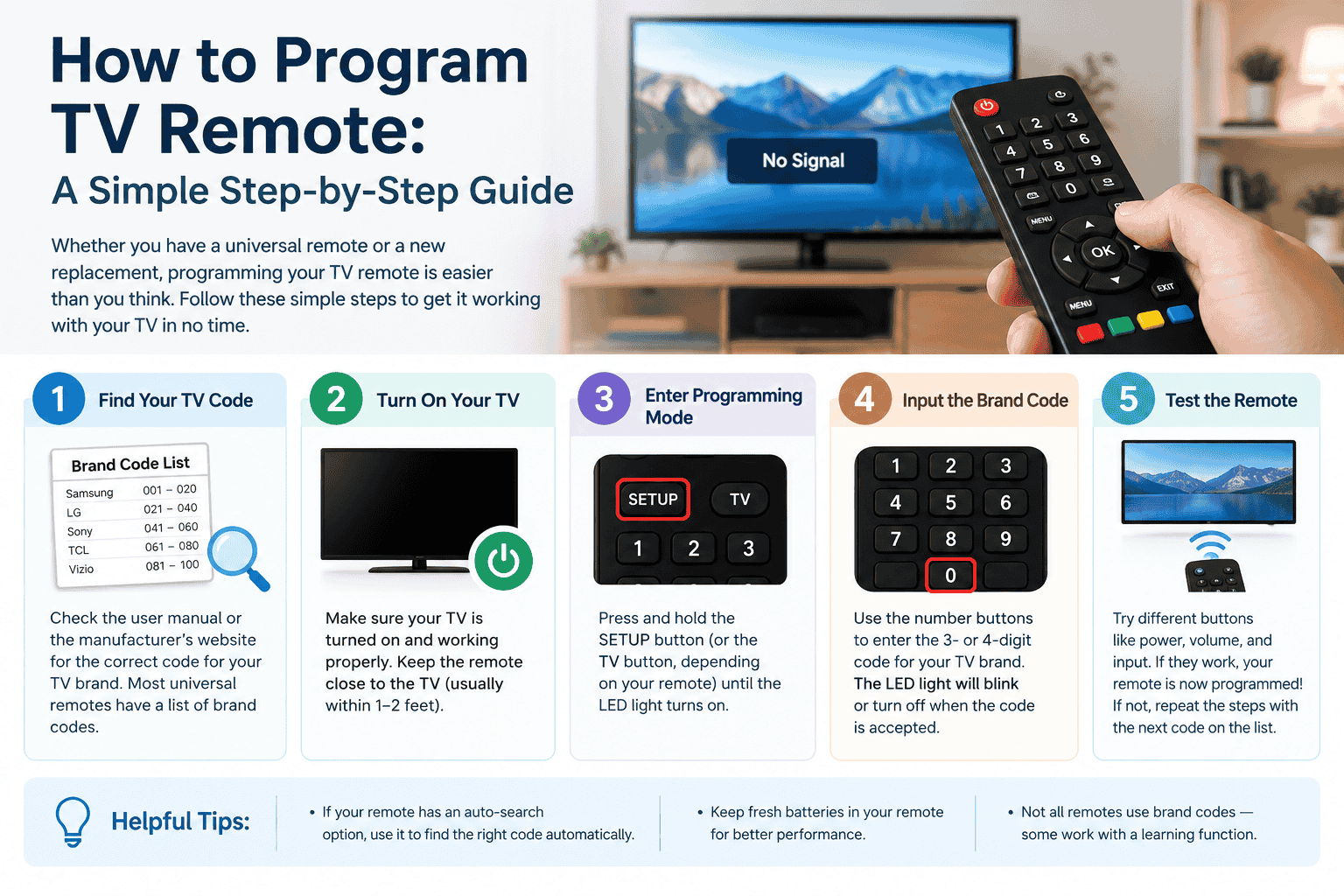
Programming a TV remote lets you control your television without using the original remote. Whether you have a universal remote, a replacement remote, or a remote that has lost its settings, the programming process is usually straightforward.
The exact steps depend on your TV brand and remote model, but most remotes can be programmed using a code, automatic code search, or a dedicated setup button.
What You Need Before Programming a TV Remote
Before you start, make sure you have:
- Your TV and remote control
- Fresh batteries in the remote
- The TV brand name
- The remote’s instruction manual, if available
- A list of compatible remote codes, if your remote requires one
Keep the TV turned on during setup unless the remote’s instructions specifically say otherwise.
How to Program TV Remote With a Code
Using a TV code is one of the most common ways to program a universal remote.
Step 1: Turn On Your TV
Turn on the television manually or with its existing remote. Point the universal remote at the TV during setup.
Step 2: Enter Programming Mode
Press and hold the TV button on the remote. Depending on the model, you may need to press the Setup, Code Search, or another programming button first.
Wait for the indicator light to turn on or flash.
Step 3: Enter the TV Code
Enter the code assigned to your TV brand. Some brands have several possible codes, so you may need to try more than one.
If the indicator light turns off after entering the code, the remote may have accepted it.
Step 4: Test the Remote
Try several functions, such as:
- Power
- Volume up and down
- Channel up and down
- Mute
- Input/source
If most buttons work correctly, you programmed the remote successfully.
How to Program a TV Remote Without a Code
If you cannot find the correct TV code, many universal remotes have an automatic code-search feature.
- Turn on the TV.
- Press and hold the Setup or TV button.
- Activate the remote’s automatic code search.
- Point the remote toward the TV.
- Press the Power or Channel Up button repeatedly.
- Stop when the TV responds.
- Press the confirmation button to save the code.
- Test the remote’s main functions.
The exact button combination varies by remote model, so check the instructions that came with your remote when possible.
How to Program a Replacement TV Remote
Replacement remotes are often designed for a particular TV brand and may require little or no programming.
Insert the batteries and point the remote at the TV. If it doesn’t work immediately, check the remote’s manual for a setup or pairing procedure.
Some newer smart TVs use Bluetooth or another wireless connection instead of traditional infrared signals. In that case, you may need to pair the remote through the TV’s settings.
Universal Remote vs. Original TV Remote
| Feature | Original Remote | Universal Remote |
| Setup | Usually minimal | Often requires programming |
| TV compatibility | Specific model/brand | Multiple brands |
| Multiple devices | Limited | Often supported |
| Replacement option | Model-specific | Broad compatibility |
| Setup codes | Usually unnecessary | Often required |
A universal remote is useful when you want one controller for your TV and other devices, while an original remote generally provides the best compatibility with the television.
What to Do If the Remote Does Not Work
If programming fails, try these basic solutions:
Replace the Batteries
Weak batteries can prevent the remote from sending a reliable signal. Install a fresh pair and try programming it again.
Try Another Code
A TV brand may have several compatible codes. If one code only controls some functions, try the next code listed for your TV.
Reset the Remote
Some universal remotes allow you to erase saved programming and return to their default settings. After resetting it, repeat the setup process.
Check the Sensor
For infrared remotes, make sure nothing is blocking the sensor on the front of the TV. Point the remote directly toward the television.
Check Remote Compatibility
Not every universal remote supports every TV. Smart TVs may also require specific pairing methods that differ from traditional infrared remotes.
Can a TV Remote Control Other Devices?
Many universal remotes can operate devices such as:
- TVs
- DVD and Blu-ray players
- Soundbars
- Streaming devices
- Cable or satellite boxes
After programming the TV, you can usually assign separate device buttons to control other compatible equipment.
Common Remote Programming Problems
A few problems occur frequently during setup.
The TV turns on, but the volume does not work:
The code may only partially support your TV. Try another compatible code.
The remote does nothing:
Check the batteries, confirm that the remote is in TV mode, and make sure it supports your television.
The remote works temporarily:
The programming may not have been saved. Repeat the setup process and use the remote’s confirmation button when required.
The TV responds slowly:
Point the remote directly at the TV and check for objects blocking the infrared sensor.
Troubleshooting Other Device-Related Settings
If you are also troubleshooting network-connected devices, you may encounter settings such as 10.0 0.0 1 piso wifi time pause when managing a Piso WiFi system. This is unrelated to programming a television remote, but understanding the correct device and network interface can help prevent confusion between TV and router configuration tasks.
