
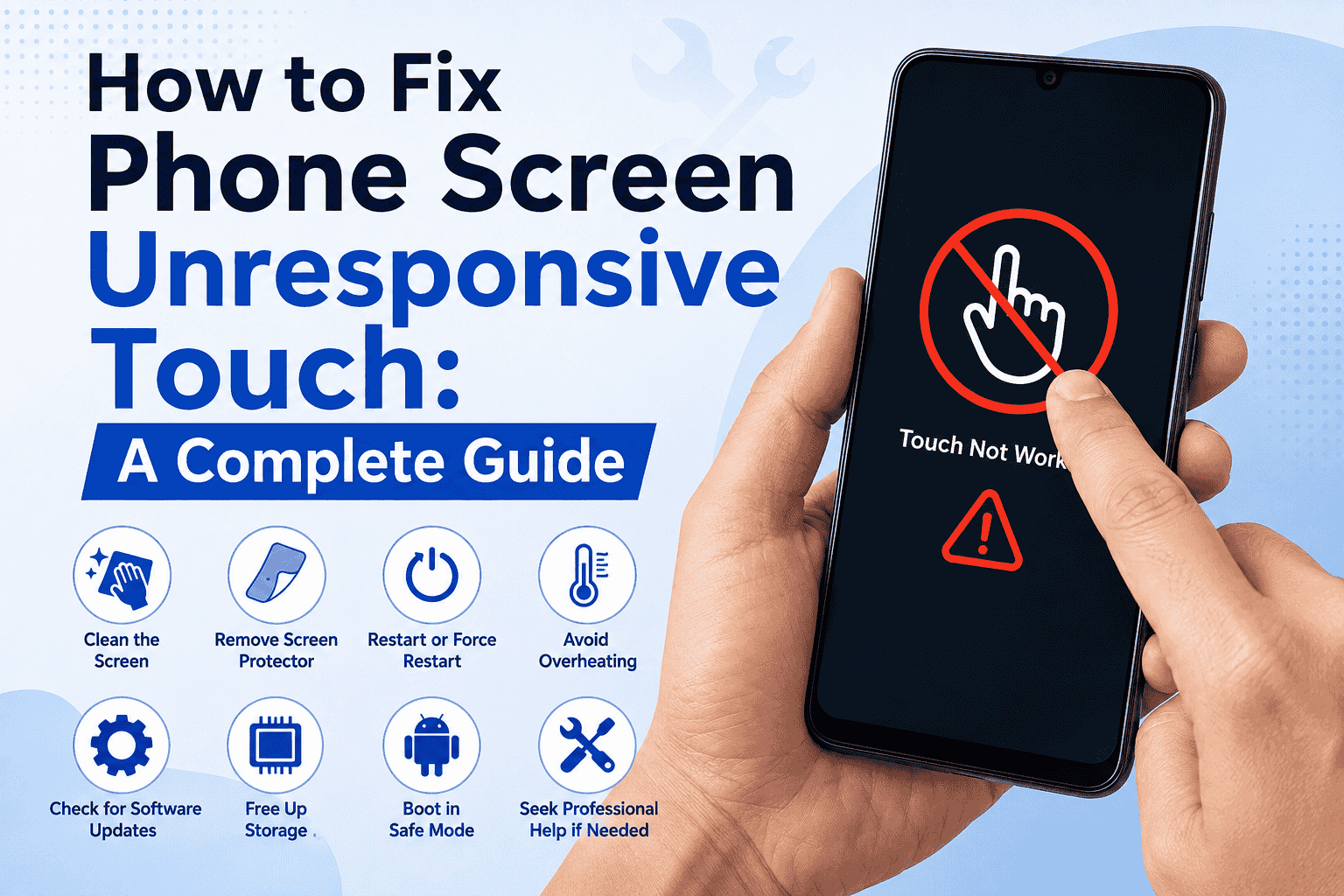
A phone with an unresponsive touchscreen can make it difficult or impossible to open apps, type messages, or access important settings. A temporary software glitch, a dirty or wet screen, a damaged screen protector, overheating, or physical damage may cause the problem.
If you are wondering how to fix phone screen unresponsive touch, try the solutions below in order. Start with the simple fixes before moving on to more advanced troubleshooting.
Why Is My Phone Touch Screen Not Responding?
Several issues can cause a phone screen to stop responding to touch. Common causes include:
- Temporary software glitches
- A frozen or crashed app
- Dirt, oil, or moisture on the screen
- A damaged or poorly fitted screen protector
- Overheating
- Low storage or system problems
- Outdated software
- Physical damage from drops or pressure
- Internal hardware or touchscreen digitizer failure
Identifying the cause can help you choose the right solution.
How to Fix Phone Screen Unresponsive Touch
1. Clean and Dry the Screen
Start by wiping the screen with a clean, soft, dry microfiber cloth. Remove any moisture, dust, grease, or other debris that could interfere with touch sensitivity.
Also make sure your fingers are clean and dry before testing the screen again.
2. Remove the Screen Protector
A cracked, thick, or poorly installed screen protector can sometimes affect touchscreen responsiveness. Carefully remove the protector and check whether the screen responds normally.
If touch works after removing it, replace the protector with a compatible, high-quality one.
3. Restart Your Phone
A temporary software problem can cause the touchscreen to freeze. Restarting the phone may restore normal touch functionality.
If you cannot use the touchscreen, use the physical power and volume buttons to perform a forced restart. The button combination varies by phone model, so use the manufacturer’s recommended method.
4. Force Restart a Frozen Phone
If the phone is completely frozen and you can’t restart it normally, perform a forced restart.
For example, many Android phones require holding the Power button and Volume Down button together for several seconds. iPhones use different button combinations by model.
Avoid repeatedly pressing random button combinations. Check the instructions for your specific phone model.
5. Let an Overheated Phone Cool Down
Excessive heat can temporarily affect phone performance and touchscreen responsiveness.
If the phone feels unusually hot:
- Disconnect the charger.
- Stop using demanding apps.
- Remove the phone case if necessary.
- Place the phone in a cool, shaded area.
- Allow it to return to a normal temperature.
Do not put a hot phone in a refrigerator or freezer because sudden temperature changes can cause additional damage.
6. Check for Software Updates
An outdated operating system or software bug can sometimes cause touchscreen problems. If you can access the phone, check for available system updates.
On most phones, you can find software updates under Settings > System Update or a similar option.
Install updates from the official device manufacturer, then restart the phone.
7. Check Whether One App Is Causing the Problem
If the touchscreen becomes unresponsive only in a particular app, the app may be causing the issue.
Try closing the app and reopening it. If the problem continues, update or uninstall the application.
If the screen works normally elsewhere, the problem is more likely software-related than a damaged touchscreen.
8. Free Up Storage Space
Very low storage can affect overall phone performance and may make apps or the operating system unstable.
Delete unnecessary videos, photos, downloads, and unused applications. Keep enough free storage available for the operating system and apps to function properly.
9. Remove Accessories That May Interfere
In certain cases, magnetic accessories or poorly fitted screen protectors may interfere with the phone’s operation.
Remove the case and other accessories temporarily and test the touchscreen again.
10. Try Safe Mode on Android
If you use an Android phone, Safe Mode can help determine whether a third-party application is causing the touchscreen problem.
In Safe Mode, many downloaded apps are temporarily disabled. If the touchscreen works normally in Safe Mode, a recently installed or updated app may be responsible.
The method for entering Safe Mode differs between manufacturers, so follow the instructions for your specific Android model.
Quick Troubleshooting Chart
| Problem | Possible Cause | Recommended Fix |
| Screen is dirty | Dust, oil, or moisture | Clean and dry the screen |
| Touch stopped after installing protector | Protector interference | Remove or replace protector |
| Phone is frozen | Software glitch | Restart or force restart |
| Phone is very hot | Overheating | Let the phone cool down |
| Problem occurs in one app | App issue | Update or reinstall the app |
| Phone has very little storage | Performance problems | Free up storage |
| Screen stopped working after a drop | Physical damage | Get the phone inspected |
| Only part of the screen responds | Digitizer or display damage | Seek professional repair |
What to Do If Only Part of the Screen Is Unresponsive
If some areas respond to touch while another section does not, the problem may involve the touchscreen digitizer or display assembly.
First, remove the screen protector and clean the display. If the same area remains unresponsive after restarting the phone, hardware damage becomes more likely.
This is especially important if you recently dropped the phone, exposed it to water, or put pressure on it.
Similar: The Ultimate Guide to Screen Recording on Windows
What to Do If the Screen Is Completely Unresponsive
When the entire touchscreen stops responding, try a force restart first. Then check for visible cracks, black spots, flickering, or other abnormalities.
If the phone turns on but touch remains completely unavailable, the issue could involve the touchscreen digitizer, display assembly, internal connector, or another hardware component.
At this stage, professional diagnosis is usually the safest option.
Can Water Cause an Unresponsive Touch Screen?
Yes. Moisture can interfere with touchscreen operation and may damage internal components.
If your phone gets wet, turn it off if possible and disconnect it from power. Remove accessories and allow the device to dry naturally in a safe, ventilated location.
Do not charge a wet phone. If you suspect water has entered the device, you may need a professional inspection.
When Should You Get Professional Repair?
Consider professional repair if:
- The screen remains unresponsive after restarting.
- Only certain areas of the screen work.
- You dropped or physically damaged the phone.
- The display is cracked or distorted.
- The phone was exposed to liquid.
- Touch problems continue after software troubleshooting.
- The screen does not respond even during startup or recovery.
A technician can determine whether the problem is the display, digitizer, connector, battery, or another internal component.
Frequently Asked Questions
How do I fix an unresponsive phone screen?
Clean and dry the screen, remove the screen protector, restart the phone, and let it cool if it is overheating. If the issue continues, check for software problems or have the device inspected for hardware damage.
Why is my phone screen not responding to touch?
A touchscreen can stop responding because of software glitches, moisture, dirt, overheating, a damaged screen protector, or physical hardware damage.
Can a restart fix an unresponsive touchscreen?
Yes. If a temporary software glitch is causing the problem, restarting or force-restarting the phone may restore touchscreen functionality.
Should I replace my screen if touch is not working?
Not necessarily. The problem may be software-related or caused by a screen protector, moisture, or another issue. If basic troubleshooting doesn’t help, have a professional diagnose the phone before replacing the screen.
Additionally
When your touchscreen stops responding, start with simple solutions such as cleaning and drying the screen, removing the screen protector, restarting the phone, and letting it cool down. Software updates and app troubleshooting can help if the problem is software-related.
If the screen remains unresponsive, especially after a drop or liquid exposure, the problem may be hardware-related. In that situation, professional diagnosis is the best next step.
